Network Portal user guide
The Network Portal offers different options depending on your user access level.
- Administrators can add and remove employees from the network and connect network devices that do not require user login, such as network printers, laboratory equipment, and security systems.
- Employees can change their network password.
This guide includes information on:
For administrators only:
🔐 How to log in to the network portal
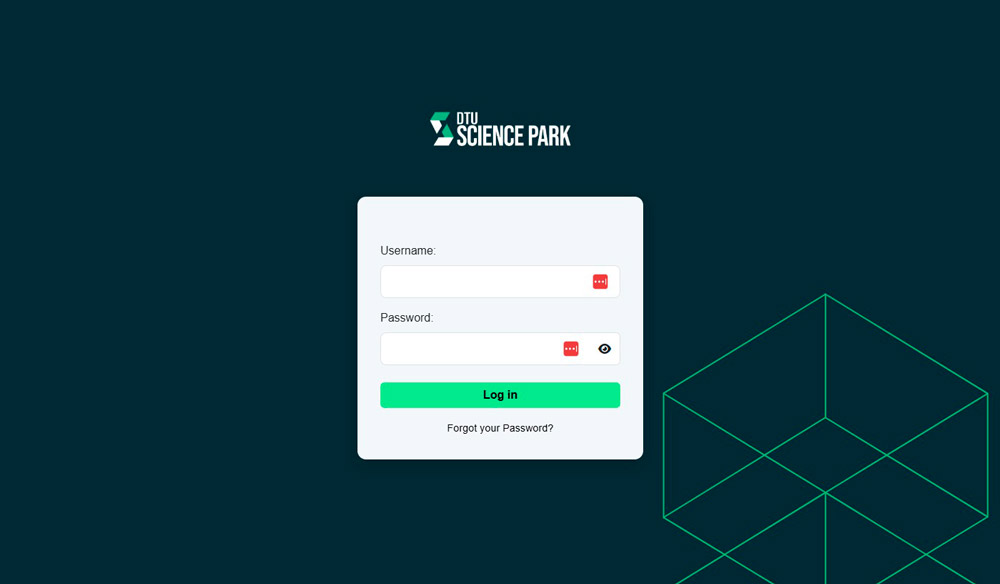
Go to https://network.dtusciencepark.dk/ and enter your username and password.
Note: If there are multiple failed login attempts, your account will be temporarily locked. Please wait a few minutes before trying again, or contact your administrator.
- Click “Forgot your Password?”
- Enter your email address in the modal window.
- You will receive an email with a temporary code.
- Enter the code and set a new password.
🔐 Change your password
Employees without administrator rights can only change their password in the portal.
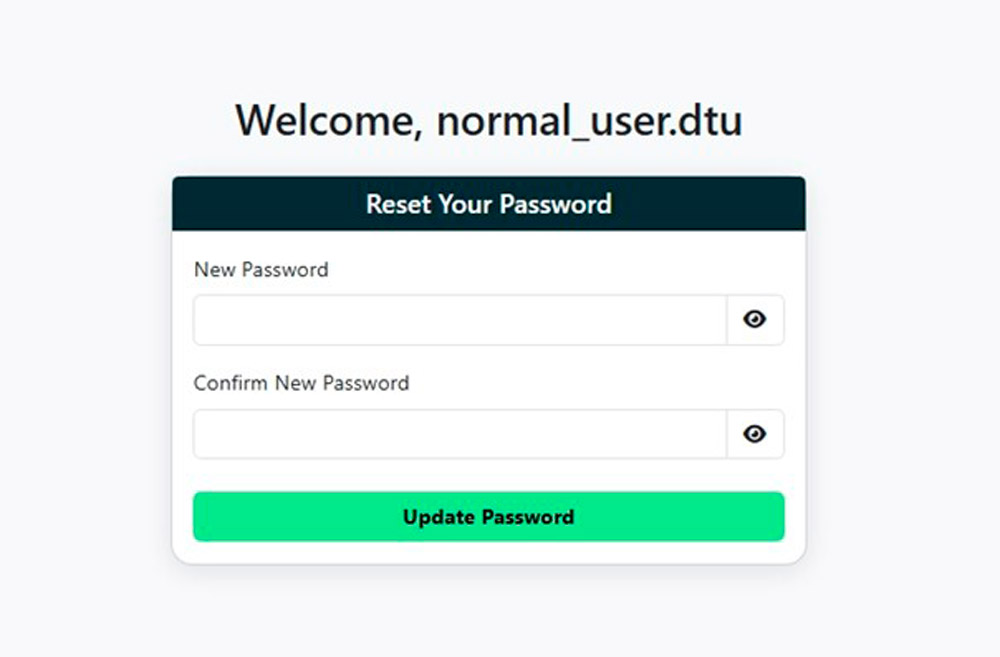
A modal window will appear when you log in, allowing you to change your password.
- Enter a password of your choice
- Confirm your password
- Click the ‘Update Password’ button
You will be automatically logged out when you change your password. The new password will be active the next time you log in.
The new password works for the network portal and when connecting to the Wi-Fi network.
When you log in to the Network Portal as an administrator, you can change your password in the top-right corner.
- Click the arrow next to your username in the top-right corner.
- Select ‘Change password’.
- Enter a password of your choice.
- Confirm your password
- Click the ‘Update Password’ button
You will be automatically logged out when you change your password. The new password will be active the next time you log in.
You can update your details (name and email) in the same menu under ‘Update information’.

🧑 Add/Remove employees from your Network
Administrators only
As an administrator, you can add and remove employees from your Network on the ‘List of users’ tab.
Here, you’ll find an overview of all users registered on your Network. The users are listed alphabetically, and you can search for specific users using the ‘Search Users’ field.
How to add a new user to your Network
- Click the green ‘Add User’ button.
- A modal box will appear where you can enter the user’s email address, first name, and last name.
- A password will then be auto-generated.
- Click the green ‘Submit’ button, and the user will receive their login details by email.
The user can then log in to the portal and change their password.
How to delete a user from the Network
If an employee leaves, removing them from your Network is useful. Your administrator can do this as follows:
- Find the employee in the user list. If you have many users, use the search function at the top.
- Click the red ‘Delete’ button next to the employee’s name.
- A modal box will appear, asking for confirmation.
- Confirm that you want to delete the user.
- If the user does not disappear from the list, click the ‘Refresh’ button.

🖨️ Add network devices
Administrators only
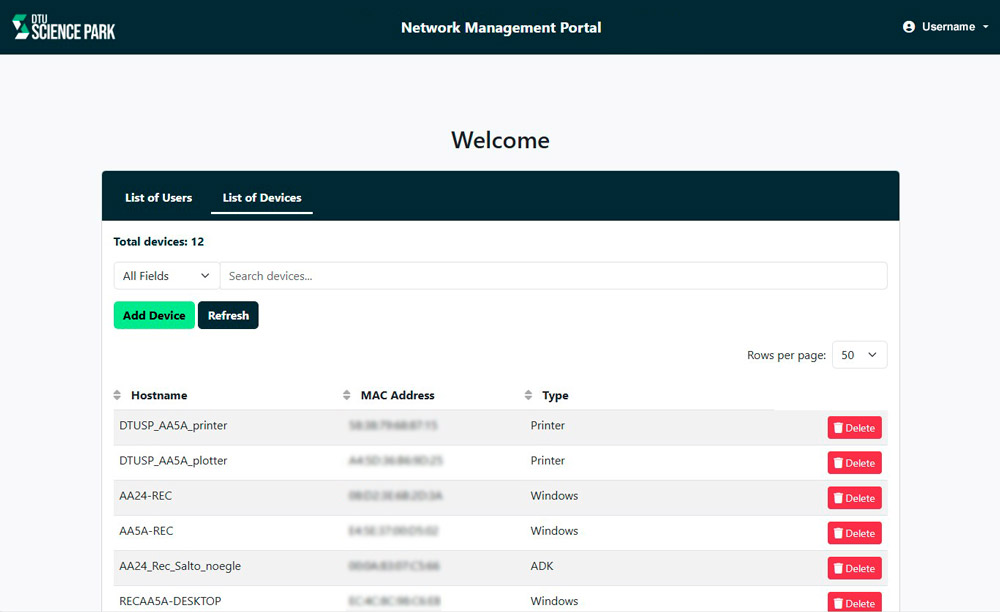
Under the ‘List of devices’ tab, you can connect network devices that don’t require a user log in, such as network printers, lab equipment, and security systems.
You’ll see an overview of the registered network devices when you click the tab.
How to add a new device to your network
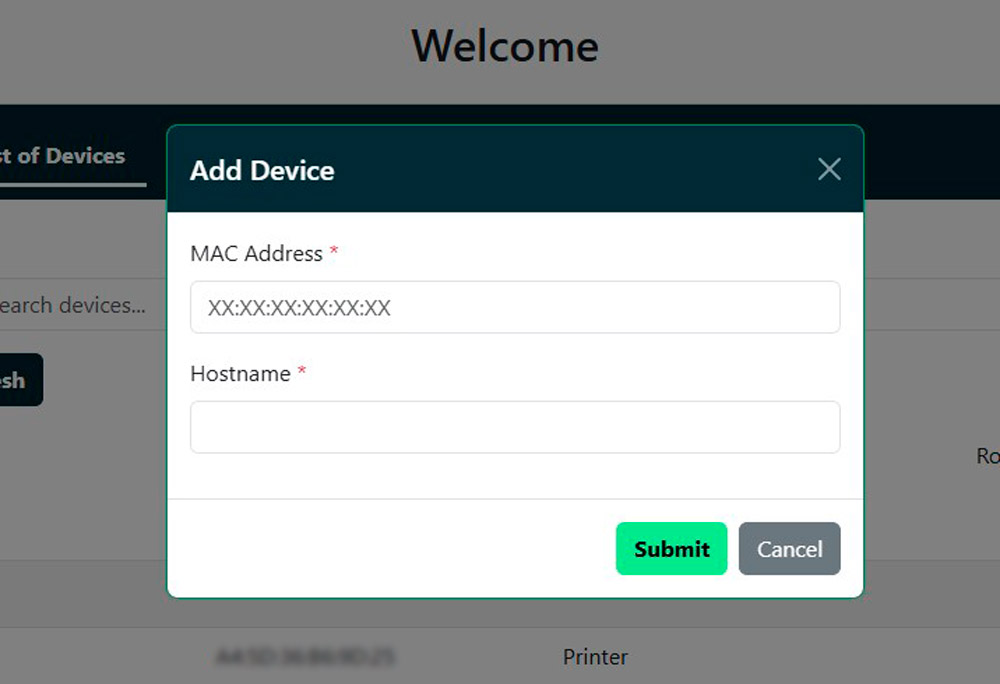
- Click the green ‘Add Device’ button.
- A modal box will appear where you can enter the device’s MAC address and Hostname.
- Click the green ‘Submit’ button to add the device to the network. The device is now registered on the network. Click the’ Refresh’ button if it doesn’t appear in the list.
- The devices you created must now be connected to the SSID (network) named ‘DTU SciencePark Hosts’, after which they will be part of your internal network.